


Making changes to your Proton VPN subscription
You can upgrade, downgrade, or change the auto-renew period for any paid Proton VPN subscription from your account settings.
- Upgrade from Proton Free to a paid subscription
- Switch to a different paid subscription
- Change your subscription billing period
- Cancel a paid subscription
Upgrade from Proton Free to a paid subscription
1. Sign in to account.protonvpn.com.
2. On the Home page, click Upgrade (top right-hand corner) or Compare all plans.

3. Choose the paid plan and duration you want, then click Select [Plan].
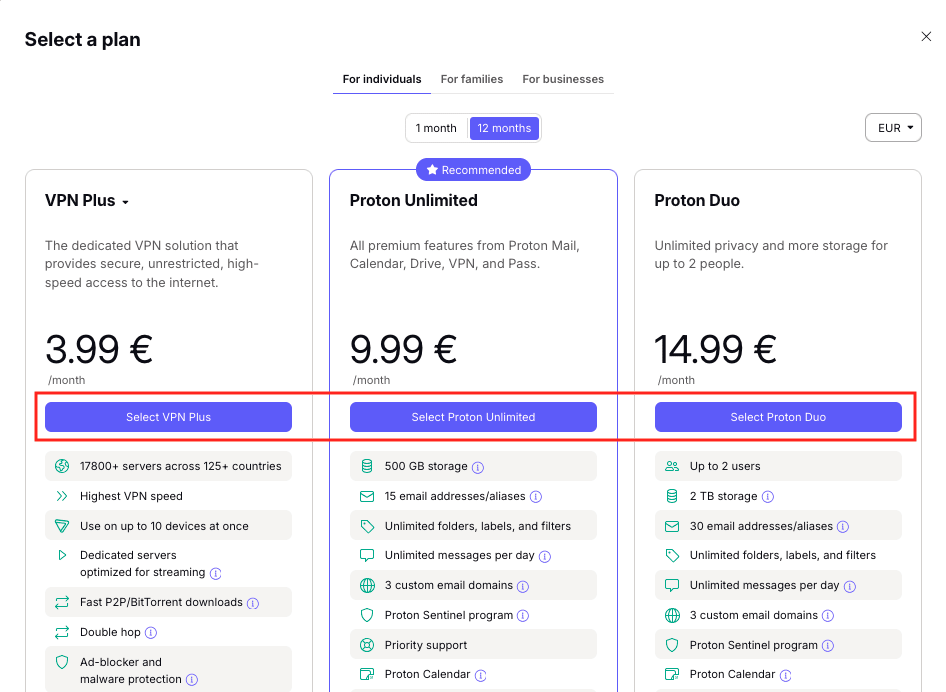
4. Select a payment method, enter your payment details, then click Pay to complete your transaction.
Switch from one paid subscription to another
1. Sign in to account.protonvpn.com.
2. Select Compare all plans from the Home page. (If you’re on a 12 or 24 month Proton Unlimited subscription, click Explore group plans instead)

3. Choose the paid plan and duration you want, then click Select [Plan].
4. Select your payment method, enter your payment details, then click Pay to complete your transaction.
Learn more about payment options

Your new subscription will start immediately. Any days left on your previous subscription are converted to credits and deducted from the cost of your new subscription.
Change your billing period
1. Sign in to account.protonvpn.com.
2. Go to Subscription → Edit billing cycle.

3. Select your new billing period and payment method.
4. Enter your payment details then click Pay to complete your transaction.
Learn more about payment options

Your new billing period will start immediately. Any days left on your previous payment cycle are converted to credits and deducted from the cost of your new subscription.
Cancel a paid subscription
You can cancel a paid Proton VPN subscription at any time. How to cancel depends on when you subscribed and how you paid.
To find out more, check out our dedicated guide on canceling a Proton VPN subscription.